> ## Documentation Index
> Fetch the complete documentation index at: https://docs-staging-docs-applications-ia-reorg.mintlify.site/llms.txt
> Use this file to discover all available pages before exploring further.

> Learn how to configure an update policy form using Forms for Actions for users to review and accept new terms of service or consent updates.

# Use Cases: Configure an update policy form using Forms

<Card title="Before you start">
  1. Create a [Machine-to-Machine Application](/docs/get-started/auth0-overview/create-applications/machine-to-machine-apps) with the following scopes enabled:

  * `read:users`
  * `update:users`
  * `create:users`
  * `read:users_app_metadata`
  * `update:users_app_metadata`
  * `create:users_app_metadata`

  2. Add a [Vault connection](/docs/customize/forms/vault) using the M2M application credentials.
</Card>

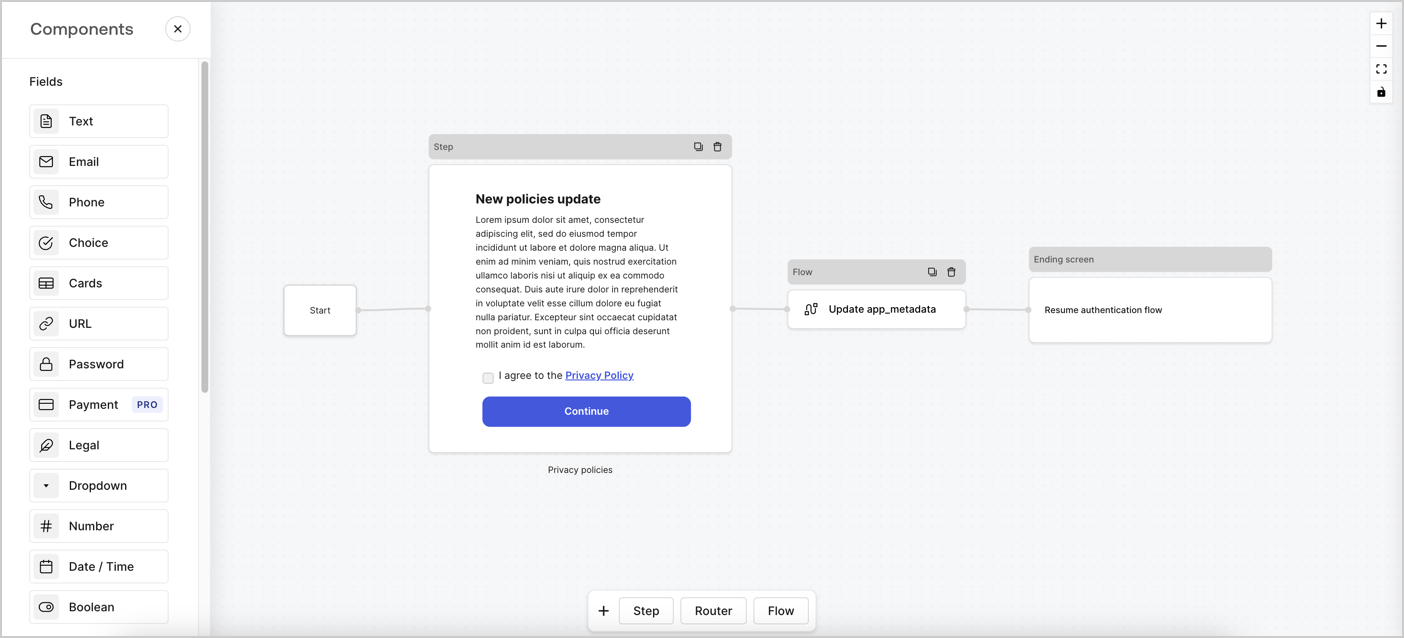
Forms for Actions allows you to create custom privacy policies flows and store the consent under the `app_metadata` object.
<Frame>
  <img src="https://mintcdn.com/docs-staging-docs-applications-ia-reorg/YpTDB-InQbLvdwNa/docs/images/cdy7uua7fh8z/6i68dMvHDTijfRmSgN1x8Q/ad900e7d4c0fb34645921435472b8684/privavy-policy-form.png?fit=max&auto=format&n=YpTDB-InQbLvdwNa&q=85&s=270b5f70db7219e608bceefec290c4e8" alt="Dashboard > Actions > Forms > Privacy policy use case" data-og-width="1404" width="1404" data-og-height="638" height="638" data-path="docs/images/cdy7uua7fh8z/6i68dMvHDTijfRmSgN1x8Q/ad900e7d4c0fb34645921435472b8684/privavy-policy-form.png" data-optimize="true" data-opv="3" srcset="https://mintcdn.com/docs-staging-docs-applications-ia-reorg/YpTDB-InQbLvdwNa/docs/images/cdy7uua7fh8z/6i68dMvHDTijfRmSgN1x8Q/ad900e7d4c0fb34645921435472b8684/privavy-policy-form.png?w=280&fit=max&auto=format&n=YpTDB-InQbLvdwNa&q=85&s=610eebe8decb86461ea5c98d43970751 280w, https://mintcdn.com/docs-staging-docs-applications-ia-reorg/YpTDB-InQbLvdwNa/docs/images/cdy7uua7fh8z/6i68dMvHDTijfRmSgN1x8Q/ad900e7d4c0fb34645921435472b8684/privavy-policy-form.png?w=560&fit=max&auto=format&n=YpTDB-InQbLvdwNa&q=85&s=8e1fd1b2862cc83de7a863a46cdb23ef 560w, https://mintcdn.com/docs-staging-docs-applications-ia-reorg/YpTDB-InQbLvdwNa/docs/images/cdy7uua7fh8z/6i68dMvHDTijfRmSgN1x8Q/ad900e7d4c0fb34645921435472b8684/privavy-policy-form.png?w=840&fit=max&auto=format&n=YpTDB-InQbLvdwNa&q=85&s=43796a73e03c8d24dea09226359dbe3b 840w, https://mintcdn.com/docs-staging-docs-applications-ia-reorg/YpTDB-InQbLvdwNa/docs/images/cdy7uua7fh8z/6i68dMvHDTijfRmSgN1x8Q/ad900e7d4c0fb34645921435472b8684/privavy-policy-form.png?w=1100&fit=max&auto=format&n=YpTDB-InQbLvdwNa&q=85&s=c7f1d4210e71fa06580faa9046c7cdc4 1100w, https://mintcdn.com/docs-staging-docs-applications-ia-reorg/YpTDB-InQbLvdwNa/docs/images/cdy7uua7fh8z/6i68dMvHDTijfRmSgN1x8Q/ad900e7d4c0fb34645921435472b8684/privavy-policy-form.png?w=1650&fit=max&auto=format&n=YpTDB-InQbLvdwNa&q=85&s=b3093ddce787188e410e777f28b15282 1650w, https://mintcdn.com/docs-staging-docs-applications-ia-reorg/YpTDB-InQbLvdwNa/docs/images/cdy7uua7fh8z/6i68dMvHDTijfRmSgN1x8Q/ad900e7d4c0fb34645921435472b8684/privavy-policy-form.png?w=2500&fit=max&auto=format&n=YpTDB-InQbLvdwNa&q=85&s=08cb29bc7ed6b1bc3e9de069c8440393 2500w" />
</Frame>

The sections below outline how you can create an Update Policy form using nodes and flows, along with steps for adding your form to a [Post Login](/docs/customize/actions/explore-triggers/signup-and-login-triggers/login-trigger) Action.

## Create a form from scratch

Follow these steps to create a form to gather information:

1. Open the Form editor by selecting **Auth0 Dashboard > Actions > Forms.**
2. Select **Create Form** > **Start from scratch**.

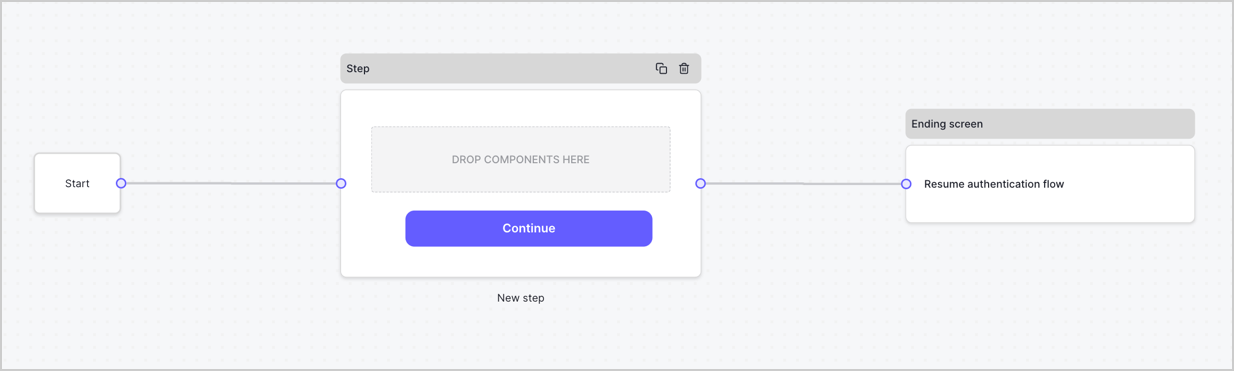
By default, a new form contains a Start node, a Step node, and an Ending screen node.
<Frame>
  <img src="https://mintcdn.com/docs-staging-docs-applications-ia-reorg/JV6aBPftUlAA-5xe/docs/images/cdy7uua7fh8z/2TZ9jSjgEcARFpULI6hz4R/a4319a1bd482f2ee5cc23100fdb2f42c/New-form-Forms-for-action-use-case.png?fit=max&auto=format&n=JV6aBPftUlAA-5xe&q=85&s=5091a172204c7078089f6186f3ad6a25" alt="Dashboard > Forms > Use Cases > Form" data-og-width="1234" width="1234" data-og-height="371" height="371" data-path="docs/images/cdy7uua7fh8z/2TZ9jSjgEcARFpULI6hz4R/a4319a1bd482f2ee5cc23100fdb2f42c/New-form-Forms-for-action-use-case.png" data-optimize="true" data-opv="3" srcset="https://mintcdn.com/docs-staging-docs-applications-ia-reorg/JV6aBPftUlAA-5xe/docs/images/cdy7uua7fh8z/2TZ9jSjgEcARFpULI6hz4R/a4319a1bd482f2ee5cc23100fdb2f42c/New-form-Forms-for-action-use-case.png?w=280&fit=max&auto=format&n=JV6aBPftUlAA-5xe&q=85&s=a3a27810c2e18066290f038062c89e0a 280w, https://mintcdn.com/docs-staging-docs-applications-ia-reorg/JV6aBPftUlAA-5xe/docs/images/cdy7uua7fh8z/2TZ9jSjgEcARFpULI6hz4R/a4319a1bd482f2ee5cc23100fdb2f42c/New-form-Forms-for-action-use-case.png?w=560&fit=max&auto=format&n=JV6aBPftUlAA-5xe&q=85&s=43d5d037e34ecf58d0ac6995be378df8 560w, https://mintcdn.com/docs-staging-docs-applications-ia-reorg/JV6aBPftUlAA-5xe/docs/images/cdy7uua7fh8z/2TZ9jSjgEcARFpULI6hz4R/a4319a1bd482f2ee5cc23100fdb2f42c/New-form-Forms-for-action-use-case.png?w=840&fit=max&auto=format&n=JV6aBPftUlAA-5xe&q=85&s=4254c63d90a6b760bf29d31fc2178bf3 840w, https://mintcdn.com/docs-staging-docs-applications-ia-reorg/JV6aBPftUlAA-5xe/docs/images/cdy7uua7fh8z/2TZ9jSjgEcARFpULI6hz4R/a4319a1bd482f2ee5cc23100fdb2f42c/New-form-Forms-for-action-use-case.png?w=1100&fit=max&auto=format&n=JV6aBPftUlAA-5xe&q=85&s=143ac29a9468b3f697b643e83ef2f5d2 1100w, https://mintcdn.com/docs-staging-docs-applications-ia-reorg/JV6aBPftUlAA-5xe/docs/images/cdy7uua7fh8z/2TZ9jSjgEcARFpULI6hz4R/a4319a1bd482f2ee5cc23100fdb2f42c/New-form-Forms-for-action-use-case.png?w=1650&fit=max&auto=format&n=JV6aBPftUlAA-5xe&q=85&s=2237023158c5e38c5a0840416862f2f6 1650w, https://mintcdn.com/docs-staging-docs-applications-ia-reorg/JV6aBPftUlAA-5xe/docs/images/cdy7uua7fh8z/2TZ9jSjgEcARFpULI6hz4R/a4319a1bd482f2ee5cc23100fdb2f42c/New-form-Forms-for-action-use-case.png?w=2500&fit=max&auto=format&n=JV6aBPftUlAA-5xe&q=85&s=10f6278c19b2b7884393e11a50ab384c 2500w" />
</Frame>

### Configure the Step node

The Step node is the graphical interface visible to users. Add [Fields](/docs/customize/forms/nodes-and-components) to the Step node to collect the new agreement acceptance value by following these steps:

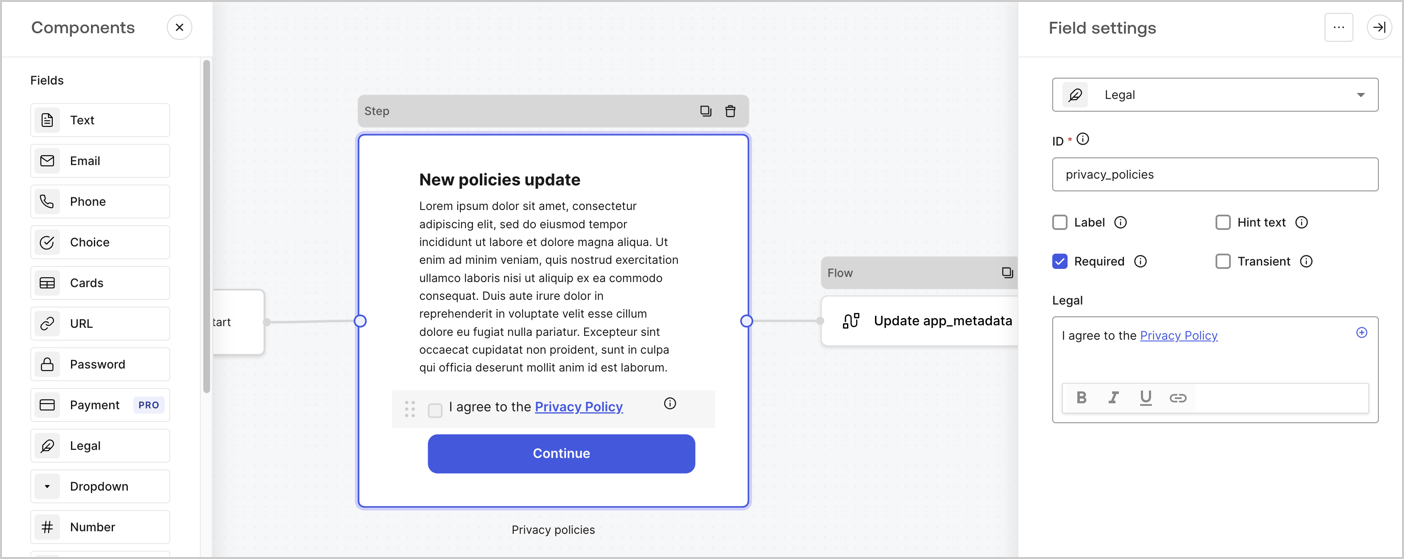
1. Drag a **Rich text** field from the **Components menu** into the **Step** node.

   * **Rich text**: Enter a description of your privacy policies updates.
   * Select **Save**.
2. Drag a **Legal** field into the **Step** node.

   * **ID**: Enter `privacy_policies`.
   * **Required**: Enable the checkbox.
   * **Legal**: Enter `I agree to the Privacy Policy`.
   * Select **Save**.
3. Select **Publish** to save.
<Frame>
  <img src="https://mintcdn.com/docs-staging-docs-applications-ia-reorg/m5xaaJIZZMAVpx1p/docs/images/cdy7uua7fh8z/59zFFjQjAnjogkc2QGIqqJ/0ad66b1b636544122aa4e65968b76c2c/privacy-policy-step-node.png?fit=max&auto=format&n=m5xaaJIZZMAVpx1p&q=85&s=7c59eb078e9d1976321948ca1a4afcf7" alt="Dashboard > Actions > Forms > Use case privacy policy step node" data-og-width="1404" width="1404" data-og-height="559" height="559" data-path="docs/images/cdy7uua7fh8z/59zFFjQjAnjogkc2QGIqqJ/0ad66b1b636544122aa4e65968b76c2c/privacy-policy-step-node.png" data-optimize="true" data-opv="3" srcset="https://mintcdn.com/docs-staging-docs-applications-ia-reorg/m5xaaJIZZMAVpx1p/docs/images/cdy7uua7fh8z/59zFFjQjAnjogkc2QGIqqJ/0ad66b1b636544122aa4e65968b76c2c/privacy-policy-step-node.png?w=280&fit=max&auto=format&n=m5xaaJIZZMAVpx1p&q=85&s=feb5cd55015673e6d89284c304a5aac8 280w, https://mintcdn.com/docs-staging-docs-applications-ia-reorg/m5xaaJIZZMAVpx1p/docs/images/cdy7uua7fh8z/59zFFjQjAnjogkc2QGIqqJ/0ad66b1b636544122aa4e65968b76c2c/privacy-policy-step-node.png?w=560&fit=max&auto=format&n=m5xaaJIZZMAVpx1p&q=85&s=3ee474816dbb89dc8678a20ec2b026ba 560w, https://mintcdn.com/docs-staging-docs-applications-ia-reorg/m5xaaJIZZMAVpx1p/docs/images/cdy7uua7fh8z/59zFFjQjAnjogkc2QGIqqJ/0ad66b1b636544122aa4e65968b76c2c/privacy-policy-step-node.png?w=840&fit=max&auto=format&n=m5xaaJIZZMAVpx1p&q=85&s=d8832704c09c9fa0178466056e2a7ea5 840w, https://mintcdn.com/docs-staging-docs-applications-ia-reorg/m5xaaJIZZMAVpx1p/docs/images/cdy7uua7fh8z/59zFFjQjAnjogkc2QGIqqJ/0ad66b1b636544122aa4e65968b76c2c/privacy-policy-step-node.png?w=1100&fit=max&auto=format&n=m5xaaJIZZMAVpx1p&q=85&s=b34930ada56ae942d0a063f0e5b7fe82 1100w, https://mintcdn.com/docs-staging-docs-applications-ia-reorg/m5xaaJIZZMAVpx1p/docs/images/cdy7uua7fh8z/59zFFjQjAnjogkc2QGIqqJ/0ad66b1b636544122aa4e65968b76c2c/privacy-policy-step-node.png?w=1650&fit=max&auto=format&n=m5xaaJIZZMAVpx1p&q=85&s=c2ae99bc401ad2680729720c32239f92 1650w, https://mintcdn.com/docs-staging-docs-applications-ia-reorg/m5xaaJIZZMAVpx1p/docs/images/cdy7uua7fh8z/59zFFjQjAnjogkc2QGIqqJ/0ad66b1b636544122aa4e65968b76c2c/privacy-policy-step-node.png?w=2500&fit=max&auto=format&n=m5xaaJIZZMAVpx1p&q=85&s=a420786648cdfd39ee77ec5da64989ee 2500w" />
</Frame>

### Configure the Flow node

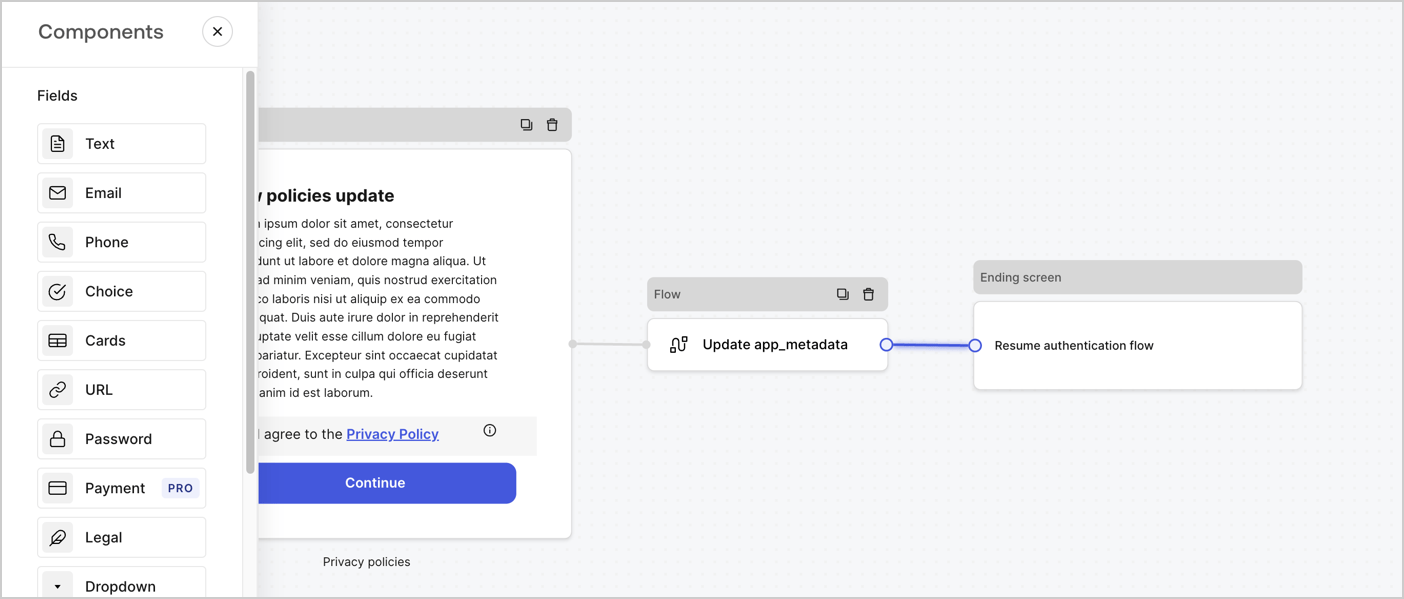
Add a **Flow** node after the **Step** node to update the `app_metadata` and resume the authentication flow by following these steps:

1. Select **Flow** from the bottom of the Form editor.
2. Remove the existing link between the **Step** and **Ending Screen** nodes.
3. Select the new **Flow** > **Click to add a flow** > **Create a new flow.**

   * Enter `Update app_metadata` in the **Name** field.
   * Select **Create**.
   * Select **Save**.
4. Link the **Flow** node to the **Step** and **Ending Screen** nodes as pictured below.
5. Select **Publish** to save.
<Frame>
  <img src="https://mintcdn.com/docs-staging-docs-applications-ia-reorg/YpTDB-InQbLvdwNa/docs/images/cdy7uua7fh8z/6YIkzm7SrpM9LW76AXuRzh/353c518fe82bbaa440836da1d83596d6/link-policies.png?fit=max&auto=format&n=YpTDB-InQbLvdwNa&q=85&s=f0e36529f55fccb4fb4f0d012b895b8a" alt="Dashboard > Actions > Forms > Form" data-og-width="1404" width="1404" data-og-height="599" height="599" data-path="docs/images/cdy7uua7fh8z/6YIkzm7SrpM9LW76AXuRzh/353c518fe82bbaa440836da1d83596d6/link-policies.png" data-optimize="true" data-opv="3" srcset="https://mintcdn.com/docs-staging-docs-applications-ia-reorg/YpTDB-InQbLvdwNa/docs/images/cdy7uua7fh8z/6YIkzm7SrpM9LW76AXuRzh/353c518fe82bbaa440836da1d83596d6/link-policies.png?w=280&fit=max&auto=format&n=YpTDB-InQbLvdwNa&q=85&s=5d845efb6860eebb00e63bdf48e02e87 280w, https://mintcdn.com/docs-staging-docs-applications-ia-reorg/YpTDB-InQbLvdwNa/docs/images/cdy7uua7fh8z/6YIkzm7SrpM9LW76AXuRzh/353c518fe82bbaa440836da1d83596d6/link-policies.png?w=560&fit=max&auto=format&n=YpTDB-InQbLvdwNa&q=85&s=0d7515f6faa808a882d5f3462261eb48 560w, https://mintcdn.com/docs-staging-docs-applications-ia-reorg/YpTDB-InQbLvdwNa/docs/images/cdy7uua7fh8z/6YIkzm7SrpM9LW76AXuRzh/353c518fe82bbaa440836da1d83596d6/link-policies.png?w=840&fit=max&auto=format&n=YpTDB-InQbLvdwNa&q=85&s=8956cc8ab1164c90ce8a614170b8bcf1 840w, https://mintcdn.com/docs-staging-docs-applications-ia-reorg/YpTDB-InQbLvdwNa/docs/images/cdy7uua7fh8z/6YIkzm7SrpM9LW76AXuRzh/353c518fe82bbaa440836da1d83596d6/link-policies.png?w=1100&fit=max&auto=format&n=YpTDB-InQbLvdwNa&q=85&s=8afa0ec7ccf9ef12a7ca3cc1bf2c479f 1100w, https://mintcdn.com/docs-staging-docs-applications-ia-reorg/YpTDB-InQbLvdwNa/docs/images/cdy7uua7fh8z/6YIkzm7SrpM9LW76AXuRzh/353c518fe82bbaa440836da1d83596d6/link-policies.png?w=1650&fit=max&auto=format&n=YpTDB-InQbLvdwNa&q=85&s=ddbbeb3890d410b66a761d13146f0cb2 1650w, https://mintcdn.com/docs-staging-docs-applications-ia-reorg/YpTDB-InQbLvdwNa/docs/images/cdy7uua7fh8z/6YIkzm7SrpM9LW76AXuRzh/353c518fe82bbaa440836da1d83596d6/link-policies.png?w=2500&fit=max&auto=format&n=YpTDB-InQbLvdwNa&q=85&s=eef8218f8ec908df4fdd18108171bc58 2500w" />
</Frame>

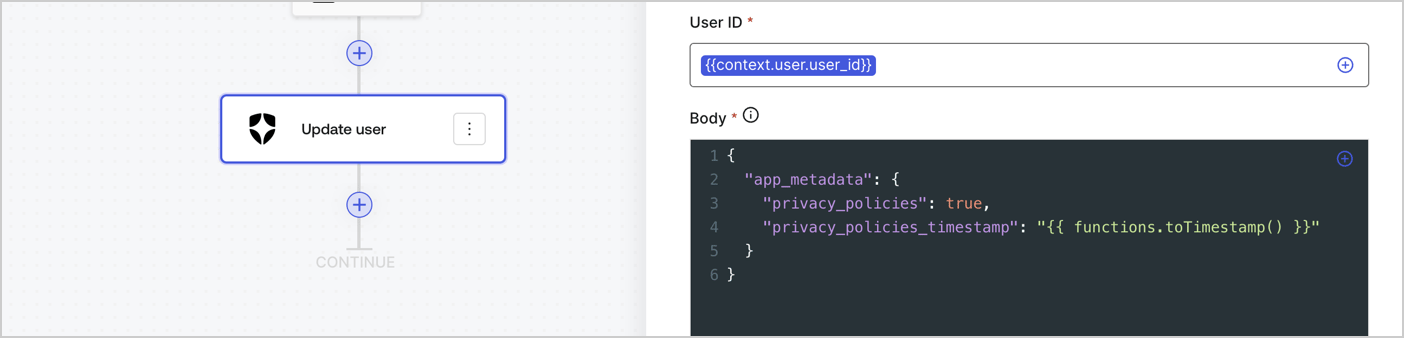
Add an Auth0 Update user action to the flow by following these steps:

1. Select the **Flow** **Update app\_metadata** > **Edit flow** to open the Flow editor in a new tab.
2. Below the StartAction, select the **+** icon to add an **Update user** action. Complete the fields below, then select **Save** to continue.

   * **Connection**: Select from the dropdown the Vault connection to your M2M application.

   * **User ID**: Enter `{{context.user.user_id}}`.

   * **Body**: Copy and paste the following code to update the app\_metadata with the privacy\_policies and privacy\_policies\_timestamp properties.

     ```text lines theme={null}
     {
       "app_metadata": {
         "privacy_policies": true,
         "privacy_policies_timestamp": "{{ functions.toTimestamp() }}"
       }
     }
     ```

   * Select **Save**.
3. Select **Publish** to save.
<Frame>
  <img src="https://mintcdn.com/docs-staging-docs-applications-ia-reorg/b8lKRCDYFqPmSkgB/docs/images/cdy7uua7fh8z/CvMNIwWrOUwaFW4X3G28p/1fb70ae57a20749d9ffaaba8dc0b7e26/update-user-privacy.png?fit=max&auto=format&n=b8lKRCDYFqPmSkgB&q=85&s=b1717a16e9a7e6d048f770ab26e61416" alt="Dashboard > Actions > Forms > User case privacy policy code" data-og-width="1404" width="1404" data-og-height="338" height="338" data-path="docs/images/cdy7uua7fh8z/CvMNIwWrOUwaFW4X3G28p/1fb70ae57a20749d9ffaaba8dc0b7e26/update-user-privacy.png" data-optimize="true" data-opv="3" srcset="https://mintcdn.com/docs-staging-docs-applications-ia-reorg/b8lKRCDYFqPmSkgB/docs/images/cdy7uua7fh8z/CvMNIwWrOUwaFW4X3G28p/1fb70ae57a20749d9ffaaba8dc0b7e26/update-user-privacy.png?w=280&fit=max&auto=format&n=b8lKRCDYFqPmSkgB&q=85&s=5762dbae0becd13446ebd4fab69492fd 280w, https://mintcdn.com/docs-staging-docs-applications-ia-reorg/b8lKRCDYFqPmSkgB/docs/images/cdy7uua7fh8z/CvMNIwWrOUwaFW4X3G28p/1fb70ae57a20749d9ffaaba8dc0b7e26/update-user-privacy.png?w=560&fit=max&auto=format&n=b8lKRCDYFqPmSkgB&q=85&s=b6824e2e414a4f26cfde405019de0eb5 560w, https://mintcdn.com/docs-staging-docs-applications-ia-reorg/b8lKRCDYFqPmSkgB/docs/images/cdy7uua7fh8z/CvMNIwWrOUwaFW4X3G28p/1fb70ae57a20749d9ffaaba8dc0b7e26/update-user-privacy.png?w=840&fit=max&auto=format&n=b8lKRCDYFqPmSkgB&q=85&s=019038ffaa668f4dfd63d07a407d71c1 840w, https://mintcdn.com/docs-staging-docs-applications-ia-reorg/b8lKRCDYFqPmSkgB/docs/images/cdy7uua7fh8z/CvMNIwWrOUwaFW4X3G28p/1fb70ae57a20749d9ffaaba8dc0b7e26/update-user-privacy.png?w=1100&fit=max&auto=format&n=b8lKRCDYFqPmSkgB&q=85&s=7578566f4a5387be7018b2fe60f79ec5 1100w, https://mintcdn.com/docs-staging-docs-applications-ia-reorg/b8lKRCDYFqPmSkgB/docs/images/cdy7uua7fh8z/CvMNIwWrOUwaFW4X3G28p/1fb70ae57a20749d9ffaaba8dc0b7e26/update-user-privacy.png?w=1650&fit=max&auto=format&n=b8lKRCDYFqPmSkgB&q=85&s=fa3b0093feb328badd5e17e59e47db6e 1650w, https://mintcdn.com/docs-staging-docs-applications-ia-reorg/b8lKRCDYFqPmSkgB/docs/images/cdy7uua7fh8z/CvMNIwWrOUwaFW4X3G28p/1fb70ae57a20749d9ffaaba8dc0b7e26/update-user-privacy.png?w=2500&fit=max&auto=format&n=b8lKRCDYFqPmSkgB&q=85&s=bfe374b3319e8586e4555c3f917b6097 2500w" />
</Frame>

<Callout icon="file-lines" color="#0EA5E9" iconType="regular">
  The flow **Update app\_metadata** adds a `privacy_policies true` value to the app`_metadata` object and also generates a timestamp with a [helper function.](/docs/customize/forms/variables)
</Callout>

## Retrieve the form render code

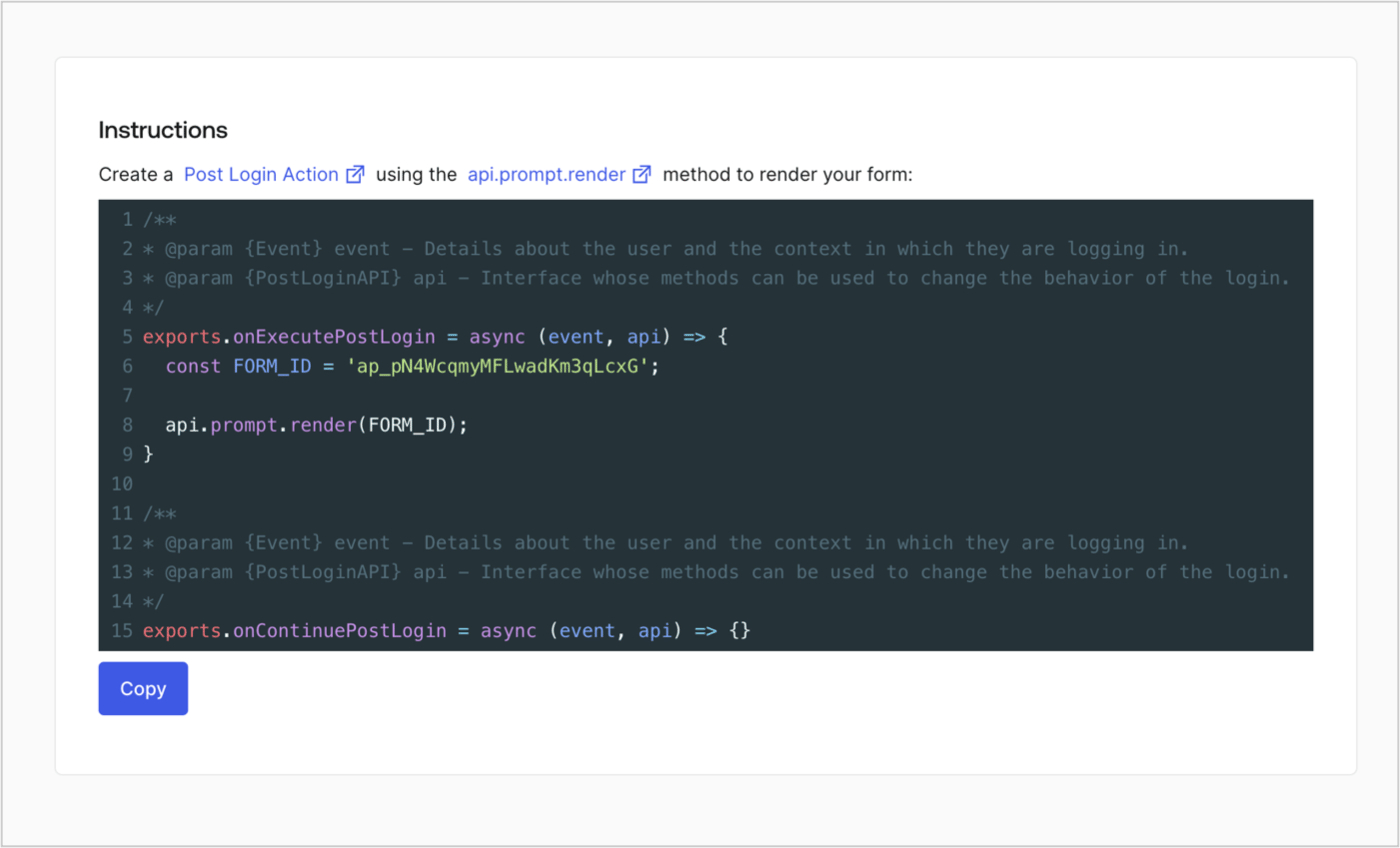
Retrieve your form render code to visually render the form with a custom Post Login Action by following these steps:

* From the Form editor, select **`<> Render`**.
* Select **Copy**.
<Frame>
  <img src="https://mintcdn.com/docs-staging-docs-applications-ia-reorg/UMn_E0dDpTkgu5HE/docs/images/cdy7uua7fh8z/2EIUzc539sq9lwoTKbjoJv/496a864c0fc44a782c9cadca119dbfb0/embed.png?fit=max&auto=format&n=UMn_E0dDpTkgu5HE&q=85&s=888ee4f4f5fca84ef8f5c25a5f4f11a4" alt="Dashboard > Actions > Forms > Form > Embed" data-og-width="1400" width="1400" data-og-height="848" height="848" data-path="docs/images/cdy7uua7fh8z/2EIUzc539sq9lwoTKbjoJv/496a864c0fc44a782c9cadca119dbfb0/embed.png" data-optimize="true" data-opv="3" srcset="https://mintcdn.com/docs-staging-docs-applications-ia-reorg/UMn_E0dDpTkgu5HE/docs/images/cdy7uua7fh8z/2EIUzc539sq9lwoTKbjoJv/496a864c0fc44a782c9cadca119dbfb0/embed.png?w=280&fit=max&auto=format&n=UMn_E0dDpTkgu5HE&q=85&s=692914e26d5cba2cb117cdcc296c6425 280w, https://mintcdn.com/docs-staging-docs-applications-ia-reorg/UMn_E0dDpTkgu5HE/docs/images/cdy7uua7fh8z/2EIUzc539sq9lwoTKbjoJv/496a864c0fc44a782c9cadca119dbfb0/embed.png?w=560&fit=max&auto=format&n=UMn_E0dDpTkgu5HE&q=85&s=5f463e83a645acfe1d1a842bb2bcb6fe 560w, https://mintcdn.com/docs-staging-docs-applications-ia-reorg/UMn_E0dDpTkgu5HE/docs/images/cdy7uua7fh8z/2EIUzc539sq9lwoTKbjoJv/496a864c0fc44a782c9cadca119dbfb0/embed.png?w=840&fit=max&auto=format&n=UMn_E0dDpTkgu5HE&q=85&s=743f4de2da81f0ae8616834caa5a3b71 840w, https://mintcdn.com/docs-staging-docs-applications-ia-reorg/UMn_E0dDpTkgu5HE/docs/images/cdy7uua7fh8z/2EIUzc539sq9lwoTKbjoJv/496a864c0fc44a782c9cadca119dbfb0/embed.png?w=1100&fit=max&auto=format&n=UMn_E0dDpTkgu5HE&q=85&s=54bc02f8eaea00f7ebedf62c10f32883 1100w, https://mintcdn.com/docs-staging-docs-applications-ia-reorg/UMn_E0dDpTkgu5HE/docs/images/cdy7uua7fh8z/2EIUzc539sq9lwoTKbjoJv/496a864c0fc44a782c9cadca119dbfb0/embed.png?w=1650&fit=max&auto=format&n=UMn_E0dDpTkgu5HE&q=85&s=dca1b98c775280d26f9bcc5090e67153 1650w, https://mintcdn.com/docs-staging-docs-applications-ia-reorg/UMn_E0dDpTkgu5HE/docs/images/cdy7uua7fh8z/2EIUzc539sq9lwoTKbjoJv/496a864c0fc44a782c9cadca119dbfb0/embed.png?w=2500&fit=max&auto=format&n=UMn_E0dDpTkgu5HE&q=85&s=79ebd65544a4b1b497928c1ba3b1a8d8 2500w" />
</Frame>

## Create a Post Login Action

Create a post-login Action to render your form by following these steps:

1. Navigate to **Auth0 Dashboard > Actions > Flows > Login.**
2. Select the **+** icon and Select **Build from scratch**:

   * **Name**: Enter `Render Update Policy Form`.
   * **Trigger**: Select `Login / Post Login`.
   * **Runtime**: Select the recommended version.
3. Select **Create**.

To configure the post-login Action:

1. Delete the existing code from the Code editor.
2. Paste the form render code into the Code editor.
3. Edit the code to define the conditional logic that will render the form.

   ```javascript lines theme={null}
   /**
   * @param {Event} event - Details about the user and the context in which they are logging in.
   * @param {PostLoginAPI} api - Interface whose methods can be used to change the behavior of the login.
   */
   exports.onExecutePostLogin = async (event, api) => {
     const FORM_ID = 'REPLACE_WITH_YOUR_FORM_ID';

     if (event.user.app_metadata.privacy_policies !== true) {
       api.prompt.render(FORM_ID);
     }
   }

   exports.onContinuePostLogin = async (event, api) => { }
   ```

   <Callout icon="file-lines" color="#0EA5E9" iconType="regular">
     The example code above will render the form when a user is missing the app metadata `privacy_policies` property.
   </Callout>
4. Select **Deploy.**
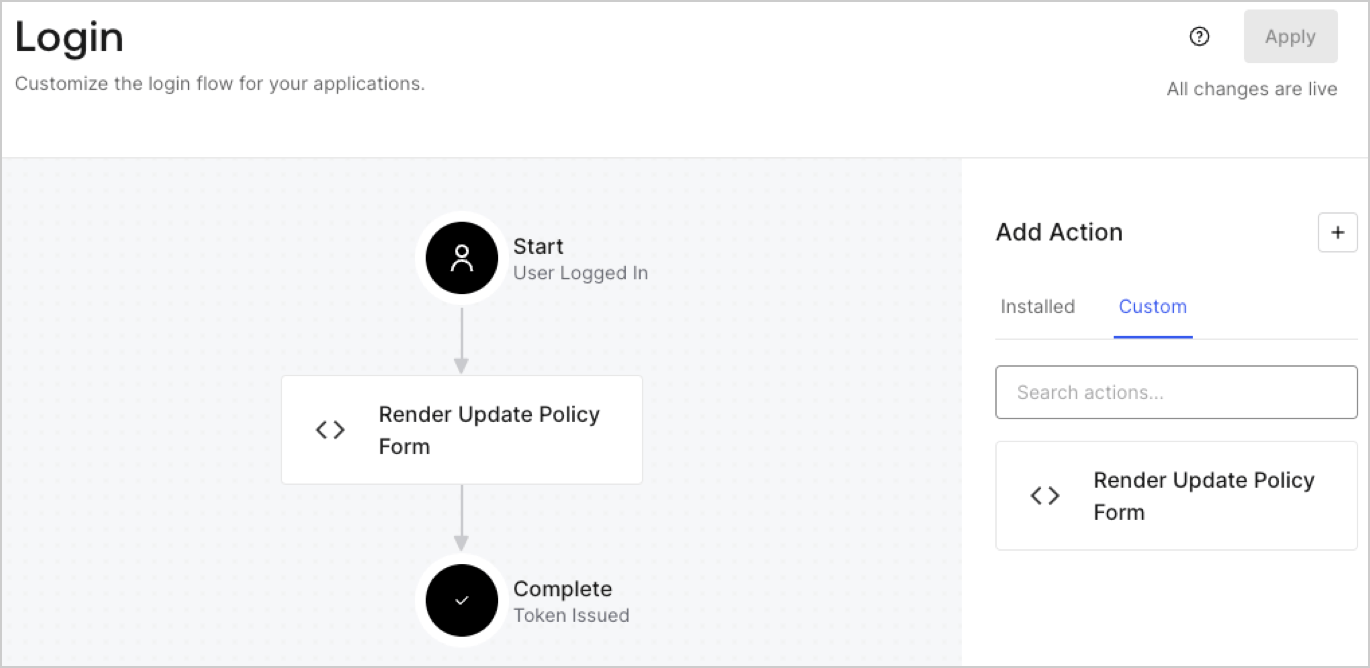
5. Drag and Drop the **Render Update Policy Form** Action to the **Login** flow.
   <Frame>
     <img src="https://mintcdn.com/docs-staging-docs-applications-ia-reorg/hU0wkDDZWvp3QOYP/docs/images/cdy7uua7fh8z/5TOwDgevZsBqd7yZynUYWU/41ca909dc3007aed4f40ff794a05efa5/postlogin.png?fit=max&auto=format&n=hU0wkDDZWvp3QOYP&q=85&s=c9d491d75fce59ecb7edb0980385266a" alt="Dashboard > Forms > Use Case > Render update policy form login action" data-og-width="1370" width="1370" data-og-height="668" height="668" data-path="docs/images/cdy7uua7fh8z/5TOwDgevZsBqd7yZynUYWU/41ca909dc3007aed4f40ff794a05efa5/postlogin.png" data-optimize="true" data-opv="3" srcset="https://mintcdn.com/docs-staging-docs-applications-ia-reorg/hU0wkDDZWvp3QOYP/docs/images/cdy7uua7fh8z/5TOwDgevZsBqd7yZynUYWU/41ca909dc3007aed4f40ff794a05efa5/postlogin.png?w=280&fit=max&auto=format&n=hU0wkDDZWvp3QOYP&q=85&s=97401aa6b6c35eccc57cf5c27d33230e 280w, https://mintcdn.com/docs-staging-docs-applications-ia-reorg/hU0wkDDZWvp3QOYP/docs/images/cdy7uua7fh8z/5TOwDgevZsBqd7yZynUYWU/41ca909dc3007aed4f40ff794a05efa5/postlogin.png?w=560&fit=max&auto=format&n=hU0wkDDZWvp3QOYP&q=85&s=a0f54e15914e662d752e726cca2b5aa3 560w, https://mintcdn.com/docs-staging-docs-applications-ia-reorg/hU0wkDDZWvp3QOYP/docs/images/cdy7uua7fh8z/5TOwDgevZsBqd7yZynUYWU/41ca909dc3007aed4f40ff794a05efa5/postlogin.png?w=840&fit=max&auto=format&n=hU0wkDDZWvp3QOYP&q=85&s=babae277937cacae06ae8466995fe2da 840w, https://mintcdn.com/docs-staging-docs-applications-ia-reorg/hU0wkDDZWvp3QOYP/docs/images/cdy7uua7fh8z/5TOwDgevZsBqd7yZynUYWU/41ca909dc3007aed4f40ff794a05efa5/postlogin.png?w=1100&fit=max&auto=format&n=hU0wkDDZWvp3QOYP&q=85&s=d906cf62a72742fc937e87b99772e9e1 1100w, https://mintcdn.com/docs-staging-docs-applications-ia-reorg/hU0wkDDZWvp3QOYP/docs/images/cdy7uua7fh8z/5TOwDgevZsBqd7yZynUYWU/41ca909dc3007aed4f40ff794a05efa5/postlogin.png?w=1650&fit=max&auto=format&n=hU0wkDDZWvp3QOYP&q=85&s=0bc47dd20373b66be57b481abd2a3b9a 1650w, https://mintcdn.com/docs-staging-docs-applications-ia-reorg/hU0wkDDZWvp3QOYP/docs/images/cdy7uua7fh8z/5TOwDgevZsBqd7yZynUYWU/41ca909dc3007aed4f40ff794a05efa5/postlogin.png?w=2500&fit=max&auto=format&n=hU0wkDDZWvp3QOYP&q=85&s=a0d17f06d841cb48d056530f4f73798d 2500w" />
   </Frame>
6. Select **Apply.**

### Test implementation

Test the implementation by following these steps:

1. Log in with an existing user whose app`_metadata` attribute `privacy_policies` does not have a value.
2. The post-login Action in the Login flow will render the form and prompt for acceptance.
3. Select **Auth0 Dashboard > User Management > Users,** locate the user and verify that the `app_metadata` attribute `privacy_policies` contains a `true` value and a timestamp.
